Posted on Leave a comment

Programming the ATTiny85

attiny85_pinout

In this post I will explain how to program am ATTiny25/45/85 MCU. I really like the AVR chips, they are powerful, have enough flash and sram memory and have a lot of build in I/O devices. And the chips come in many sizes that all have the same MCU kernel, but a different number of I/O pins and different Flash/Sram sizes. The ATTiny85 is what I use the most, it has the most flash af the 25/45/85 series and it is rather cheap. The chip has 6 programmeble I/O pins and that is enough for a lot of things. It does not have a serial Uart but if you really need this you can use the software Uart. To program this chip you will need a programming environment, I use Visuals Studio PlatformIO and the old but decent Arduino IDE. Fot beginners I would recommend the Arduino IDE as it is foolproof and easier. With PlatformIO you can control much more (like all the fuse settings in binary format) but if you do something wrong you can get totally unusable bricked MCU chips. On this page I describe an Arduino Uno as ISP programmer.

Arduino Uno as ISP

I have bought a lot of Arduino programmers when I first started and I had a lot of problems with them especially the Chinese clones. Then I discovered the Arduino Uno as ISP and build several shields for 8, 14 , 20 and 28 pins AVR chips. Because all the different sizes of chips have their programming pins on different pins and need the power pins also connected, I build several shields. But they are cheap to make. Hier is the schematic of the shield I use for the ATTiny25/45/85 processor.

I use a standard prototype shield and a ZIF header for this (8 pins zif are hard to get so I use a bigger one and put tape on the unused pins), then first upload the Arduino as ISP scketch to the Arduino Uno. Select the AruidnoISP sketch from the examples and select Arduino Uno as board.

Connect the Arduino Uno using the USB cable and select the correct port in the Tools settings. Then use the Upload button to upload the ArduinoISP sketch to the Arduino Uno and your ISP programmer is ready.

I hope this was clear, if you got anything to add to this post then let me know, regards, Hein Pragt.

Posted on Leave a comment

Programming the ATTiny2313

at90s2313

In this post I will explain how to program am ATTiny2313 / AT90S2313 MCU. I really like the AVR chips, they are powerful, have enough flash and sram memory and have a lot of build in I/O devices. And the chips come in many sizes that all have the same MCU kernel, but a different number of I/O pins and different Flash/Sram sizes. The ATTiny2313 (or the even cheaper AT90S2313) is just in the middle and I like to use this chip and it is not that expensive. To program this chip you will need a programming environment, I use Visuals Studio PlatformIO and the old but decent Arduino IDE. Fot beginners I would recommend the Arduino IDE as it is foolproof and easier. With PlatformIO you can control much more (like all the fuse settings in binary format) but if you do something wrong you can get totally unusable bricked MCU chips. On this page I describe an Arduino Uno as ISP programmer.

Arduino Uno as ISP

I have bought a lot of Arduino programmers when I first started and I had a lot of problems with them especially the Chinese clones. Then I discovered the Arduino Uno as ISP and build several shields for 8, 14 , 20 and 28 pins AVR chips. Because all the different sizes of chips have their programming pins on different pins and need the power pins also connected, I build several shields. But they are cheap to make. Hier is the schematic of the shield I use for the ATTiny2313 / AT90S2313 processor.

I use a standard prototype shield and a ZIF header for this, then first upload the Arduino as ISP scketch to the Arduino Uno. Select the AruidnoISP sketch from the examples and select Arduino Uno as board.

Connect the Arduino Uno using the USB cable and select the correct port in the Tools settings. Then use the Upload button to upload the ArduinoISP sketch to the Arduino Uno and your ISP programmer is ready.

I hope this was clear, if you got anything to add to this post then let me know, regards, Hein Pragt.

Posted on Leave a comment

Programming the ATMega32A

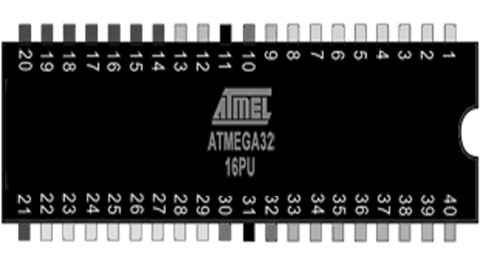
atmega32

In this post I will explain how to program am ATMega32A MCU. I really like the AVR chips, they are powerful, have enough flash and sram memory and have a lot of build in I/O devices. And the chips come in many sizes that all have the same MCU kernel, but a different number of I/O pins and different Flash/Sram sizes. If you really need a lot of I/O pins the ATMega32A is what you need, I like to use this chip and it is not that expensive. To program this chip you will need a programming environment, I use Visuals Studio PlatformIO and the old but decent Arduino IDE. Fot beginners I would recommend the Arduino IDE as it is foolproof and easier. With PlatformIO you can control much more (like all the fuse settings in binary format) but if you do something wrong you can get totally unusable bricked MCU chips. On this page I describe the Arduino IDE with an Arduino Uno as ISP programmer.

ARDUINO IDE

I really liked the Arduino IDE until the last versions. The (configuration / libraries) directories it uses are all over your disk and hard to find. That is why I recommend the portable arduino-1.8.19 version. This has all the files in a single directory. Install this version somewhere on your drive and it works out of the box. But out of the box it does not support the ATMega32 processors. There are several solutions that depend on your version of the Arduino IDE, find one that fits your IDE and install it. I have included this standard in my portable version of the Arduino IDE.

Arduino Uno as ISP

I have bought a lot of Arduino programmers when I first started and I had a lot of problems with them especially the Chinese clones. Then I discovered the Arduino Uno as ISP and build several shields for 8, 14 , 20 and 28 pins AVR chips. Because all the different sizes of chips have their programming pins on different pins and need the power pins also connected, I build several shields. But they are cheap to make. Hier is the schematic of the shield I use for the ATTin24 processor.

I use a standard prototype shield and a ZIF header for this, then first upload the Arduino as ISP scketch to the Arduino Uno. Select the AruidnoISP sketch from the examples and select Arduino Uno as board.

Connect the Arduino Uno using the USB cable and select the correct port in the Tools settings. Then use the Upload button to upload the ArduinoISP sketch to the Arduino Uno and your ISP programmer is ready.

Programming an ATMega32A

First we start by loading (or writing) the sourcecode file of the ATMega32 code in the programming language C in the Arduino IDE. Then go to the tools setting and select the correct device. Under tools select the configuration of the ATMega32A you will use, in my case an ATMega32 with external 16 Mhz clock.

// -----------------------------------------------
// Blink for ATMega32A
// H.M. Pragt 2022
// -----------------------------------------------

#ifndef F_CPU
#define F_CPU 16000000UL // 16 MHz clock speed
#endif

#include <avr/io.h>
#include <util/delay.h>

int main(void)
{
  DDRD = 0xFF; //Makes PORTD as Output
  while(1) //infinite loop
  {
    PORTD = 0xFF; //Turns ON All LEDs
    _delay_ms(2000); //1 second delay
    PORTD= 0x00; //Turns OFF All LEDs
    _delay_ms(2000); //1 second delay
  }
}

Now the last setting is selecting to use the ArduinoISP programmer:

Connect the Arduino Uno with the shield and the ATMega32A chip inserted to the computers and select upload button to program the code into the chip. As easy as that, happy programming.

I hope this was clear, if you got anything to add to this post then let me know, regards, Hein Pragt.
Posted on Leave a comment

Programming the ATTiny24

attiny24

In this post I will explain how to program am ATTiny24 (or 44,84) MCU. I really like the AVR chips, they are powerful, have enough flash and sram memory and have a lot of build in I/O devices. And the chips come in many sizes that all have the same MCU kernel, but a different number of I/O pins and different Flash/Sram sizes. I like to use the ATTiny85, it has 8 pins but of 6 I/O lines are enough this is a perfect MCU. The ATTiny2313 has 20 pins if you need more I/O lines, but the ATTiny24 has 14 pins and is cheap and has 12 programmable I/O lines. The small size with 12 I/O lines makes this one of my favorite AVR chips. To program this chip you will need a programming environment, I use Visuals Studio PlatformIO and the old but decent Arduino IDE. Fot beginners I would recommend the Arduino IDE as it is foolproof and easier. With PlatformIO you can control much more (like all the fuse settings in binary format) but if you do something wrong you can get totally unusable bricked MCU chips. On this page I describe the Arduino IDE with an Arduino Uno as ISP programmer.

ARDUINO IDE

I really liked the Arduino IDE until the last versions. The (configuration / libraries) directories it uses are all over your disk and hard to find. That is why I recommend the portable arduino-1.8.19 version. This has all the files in a single directory. Install this version somewhere on your drive and it works out of the box. But out of the box it does not support the ATTiny processors. Install a ATTiny core package like the https://github.com/damellis/attiny  (I used this one). On this website is also an installation manual so I recommend you follow this. After this you will have a Arduino IDE that can program ATTiny24 / 44 / 84  chips. I have included this standard in my portable version of the Arduino IDE.

Arduino Uno as ISP

I have bought a lot of Arduino programmers when I first started and I had a lot of problems with them especially the Chinese clones. Then I discovered the Arduino Uno as ISP and build several shields for 8, 14 , 20 and 28 pins AVR chips. Because all the different sizes of chips have their programming pins on different pins and need the power pins also connected, I build several shields. But they are cheap to make. Hier is the schematic of the shield I use for the ATTin24 processor.

I use a standard prototype shield and a ZIF header for this, then first upload the Arduino as ISP scketch to the Arduino Uno. Select the AruidnoISP sketch from the examples and select Arduino Uno as board.

Connect the Arduino Uno using the USB cable and select the correct port in the Tools settings. Then use the Upload button to upload the ArduinoISP sketch to the Arduino Uno and your ISP programmer is ready.

Programming an ATTiny24

First we start by loading (or writing) the sourcecode file of the ATTinty code in the programming language C in the Arduino IDE. Then go to the tools setting and select the correct device.

Then select the internal or external clock and the frequency.

Now the last setting is selecting to use the ArduinoISP programmer:

Connect the Arduino Uno with the shield and the ATTiny24A chip inserted to the computers and select upload button to program the code into the chip. As easy as that, happy programming.

I hope this was clear, if you got anything to add to this post then let me know, regards, Hein Pragt.